Image Light Table — user guide
by Ryan Raz
1. What Light Table is
High Resolution image light table and slide show.
See it running: My 1970s in Kodachrome 64 slides— https://rraz.ca/kodachrome/light-table/. That gallery is shown as a live example of the light table; it is not part of the package. The package can be found here: https://github.com/RRaz/Light-Table
2. What it does
Fully featured, including a magnifying loupe and the thumbnail strip.
In slide show mode the image expands to take up the whole screen, apart from the controls.
Self-contained, so installation is not restricted by the host: any web server that can serve files will run it, and the folder you upload holds the page, its files and the photographs. There is no database, no PHP, Node or Python on the server, and no setup program.
Your photographs stay yours. Building a gallery and viewing it send no photograph to any cloud service. Everything happens on your own host, under your own account.
3. The light table in use
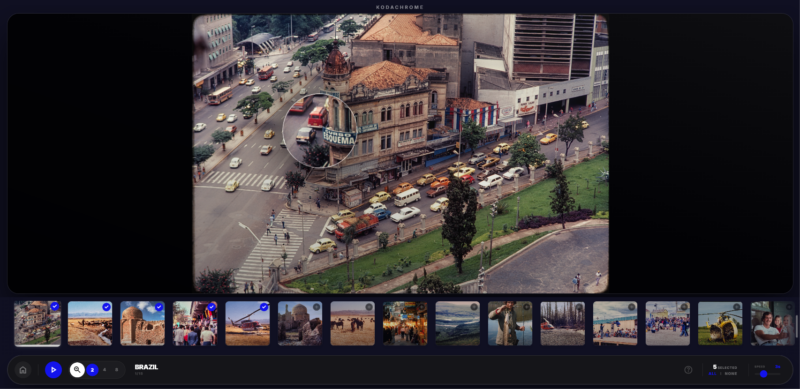
My 1970s in Kodachrome, shown with the magnifier open at 2x
The magnifier is open at 2× in this capture: the lens follows the pointer across the photograph, and the buttons beside it switch to 4× and 8×. The thumbnail strip along the bottom is where photographs are chosen for the slide show.
My 1970s in Kodachrome
4. What you receive
One zip containing a single folder, named after the gallery. It includes a sample gallery of eight colour slides, so the light table can be checked before your own photographs are added:
colours/
light-table/
index.html
assets/
colours/
gallery.json
01-red.png
02-orange.png
…
08-violet.png
light-table/ is the app. It is the same in every gallery and is not edited.
the inner folder, with the same name, holds the images and gallery.json — the list that says which photographs appear, in what order, with what captions. The sample colour slides are replaced by your photographs.
nothing else is required: no database, no server code, no installer.
The two folders must keep those names and that relationship. light-table/ looks for the gallery beside it.
5. Installing
Put the whole container folder on your website, unchanged. That is the whole install: the folder is the light table.
The address is:
https://yoursite.com//light-table/
with replaced by the folder name. The sample folder is colours, so its address is:
https://yoursite.com/colours/light-table/
The folder name is also the heading above the photos; hyphens become spaces, so lake-simcoe is shown as Lake Simcoe. The folder can sit at the top level or in a subfolder — only the address changes.
If your website accepts file uploads — FTP, a control panel File Manager, or the upload in your host’s dashboard — use the structure above exactly as it is.
If your site is built with a page builder
A page builder usually will not let you upload index.html and assets/, so the folder cannot live there. The gallery still works, in two steps:
Put the folder somewhere that serves files. A spare folder on your hosting, a subdomain, or any host that only has to serve files will do. It does not need a database, PHP, Node or a build step, and it does not need developer tools or accounts.
On the page, add the light table address with the builder’s Embed or HTML block. The light table then opens inside your page.
For that second step use the explicit form of the address, so the light table knows which gallery to load:
https://your-static-host.example/colours/light-table/?gallery=/colours
You may want to keep each build as a dated zip (section 9), so the gallery can be replaced or rolled back without rebuilding it.
Check it: open the address above. If the colour slides appear, it is installed.
6. Opening it
https://yoursite.com/colours/light-table/
https://yoursite.com/colours/light-table/?gallery=/colours
Both open the same gallery. The ?gallery= form is the explicit one and is the safer choice when the light table is embedded in another page or loaded from a different folder; without it the light table works out the gallery from its own address. The live example in section 1 uses the short form.
7. Changing the gallery
There are two routes: send the folder back to be rebuilt, or edit it on the server without any tools. Both touch the same two things:
the images, in the inner folder — colours/colours/ in the sample
the list, gallery.json, beside them
The whole file looks like this, with two photos in it:
{
“updated”: “2026-10-29T23:12:05.766Z”,
“photos”: [
{
“id”: “01-first-photo”,
“url”: “./01-first-photo.jpg”,
“title”: “First photo”
},
{
“id”: “02-second-photo”,
“url”: “./02-second-photo.jpg”,
“title”: “Second photo”
}
]
}
Leave the outer braces, the “photos”: line and the two square brackets in place. The photo blocks go between the square brackets.
The comma rule. Braces hold one photo. A comma separates it from the next one, and the last photo has no comma after it. That is the single thing that breaks a list.
When you move a photo to a different place, take the whole block – from its { to its }, – not a line at a time. After moving:
every block except the last ends with },
the last block ends with }
no block ends with two commas, and none is missing one
What you can change in the list:
Part What it does
title the caption under the photo
url which image file the entry shows: the file name with ./ in front
id the entry’s own name; no two entries may share one
the order of the blocks the order the photos appear in
adding or removing a block adding or removing a photo from the gallery
updated records when the list was last written. The build sets it on every rebuild, and the light table does not read it, so it can be left alone.
The look of the light table – colours, sizes, buttons – is not in this file. It lives in the light-table/ folder and is not edited by hand.
If the page then says Unable to load gallery, the list is the first thing to check: a missing or doubled comma is almost always the cause.
7.1 Titles come from the file name
One way to change a caption is to rename the file. 01-dawn.jpg becomes 01 dawn; rename it to Dawn over the lake.jpg and the caption becomes Dawn over the lake. Spaces, capitals and punctuation in the file name are kept as typed.
If a title was set by hand in gallery.json, the file name must still match url. Renaming the file breaks that link: the next rebuild drops the entry, adds a new one for the new name, and captions it with that name. A title set by hand does not survive a rename.
7.2 Order
The order of the blocks in gallery.json is the order shown, so there are two ways to arrange a gallery:
By rebuilding: number the files 01-, 02-, 03- and rebuild. Sorting is natural, so 2- comes before 10-.
By hand: move the blocks in gallery.json into the order you want. The file names do not matter for this.
One trap: renaming a single file makes it a new entry, and a rebuild appends new entries at the end. Rename all of them, or fix the order by hand afterwards.
7.3 Adding a photo
Rebuilding: drop the file into the image folder and rebuild. It is added at the end, then can be moved.
By hand: copy the last block in gallery.json, change id, url and title to the new file, and move the block to where it should appear. Upload the image as well.
7.4 Deleting a photo
Delete its block from gallery.json and delete the image. Do both: an entry pointing at a missing file shows a broken photo, and an image with no entry never appears.
7.5 More than one gallery
Each gallery is a self-contained folder with its own light-table/. They are updated independently, and one gallery can be replaced without touching another.
8. Updating a live gallery
Keep a copy of the current folder before changing anything.
Replace the images and gallery.json (or replace the whole folder).
Open the page and hard-refresh (Ctrl+F5). Browsers cache gallery.json, so an old list can survive a normal reload.
If an image still shows the old version, its file name is the cache key – renaming the file forces the new one to load.
Galleries published before the folder was renamed keep their old address: a small forwarding page is left behind, so links already in the wild still arrive at the gallery.
9. Versions and rollback
Name each build with a date, for example:
light-table-colours-v2026-10-28.zip
Keep the current zip and the one before it.
To roll back: delete the gallery folder on the server, upload the previous zip and extract it.
Keep zips out of the public web root, or delete them after extracting. A zip sitting on the server can be downloaded by anyone who guesses the name, and it contains the whole gallery.
10. If something is wrong
What you see What it usually means
“Unable to load gallery” gallery.json is not where the light table expects it; check the two folder names
“Unable to load gallery” after editing the list a comma is missing, doubled, or left after the last block
A blank frame assets/ was not uploaded beside index.html
Some photos missing They are not listed in gallery.json, or the file name case differs from the entry
An old photo, or an old title Browser cache — hard-refresh, or rename the file
Works on your computer, not online Paths are relative; check that the inner folder was uploaded too
11. Notes for maintaining gallery
Check how the site is updated before promising anything. FTP, a control panel, or a page builder that cannot host files at all — section 5 covers what to look for.
Decide who rebuilds after new photos. If the person who built the gallery does it, sections 7.2 to 7.4 shrink to “send the folder back”, and the recipient never edits gallery.json.
One folder per gallery. It keeps them apart, so one can be replaced without touching the others; the cost is that a light table fix is uploaded once per gallery.